
Overview
This article provides instructions to reset a learner's password in Skyllful IQ.
Password Reset Option
This password reset option is available only for Skyllful-hosted Learner accounts with Username/Password login. The option to reset passwords will not display for SSO Learner accounts.
Video Overview
Learner Password Reset
Welcome to Skillful training. In this lesson, you will learn how to perform a password reset for a Skillful-hosted user. Skillful-hosted user passwords are changed on the individual learner's profile. Let's begin by finding the profile for the learner whose password we need to reset by selecting the search icon. The search function can be used from any lens within Skillful. In the search field, type the user's name. For this example, we will change the password for learner John Owen.
Once the search results have populated, select the user's name from the results shown. This will open the learner's individual profile. The password reset functionality is directly under the learner details. If the password reset option is missing from the learner's profile, this indicates the user logs on through an organizational integration with Azure AD or Okta and their password can only be reset through their organization.
Type the new temporary password in the new password field, then type the password a second time to confirm the new temporary password. Then click Reset Password to set the temporary password. Once the learner logs in with the new temporary password, they will be prompted to reset the password. The new password must be between 4 and 64 characters, and there are no requirements set on password complexity, such as capital letters, numbers, or symbols.
After a learner has set their new password, they will be required to provide answers to three security questions. These questions will be utilized in the event the learner forgets their password. Correctly answering the security questions will allow the learner to self-service their own password reset going forward. Now that you have seen how to reset a password, you are ready to practice a password reset on your own.
Step-by-Step Procedures
1. In Skyllful IQ, select the [Search] icon.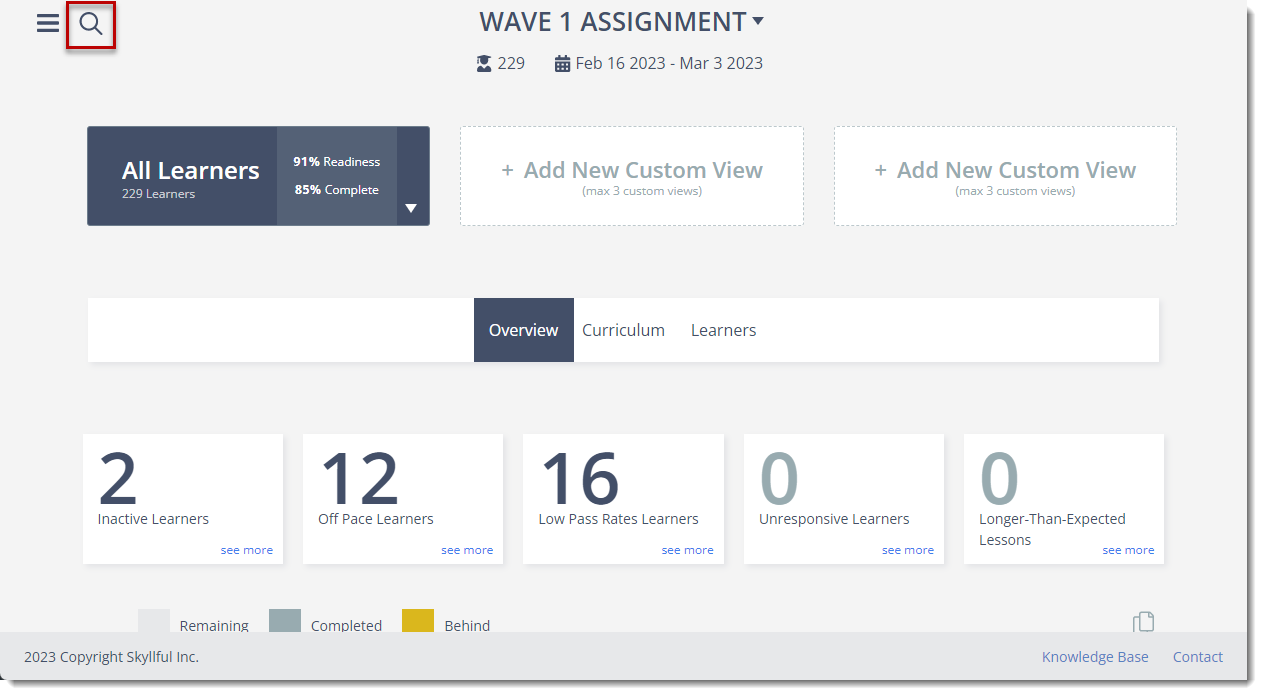
2. Search for the learner using the [Search for Learner] field.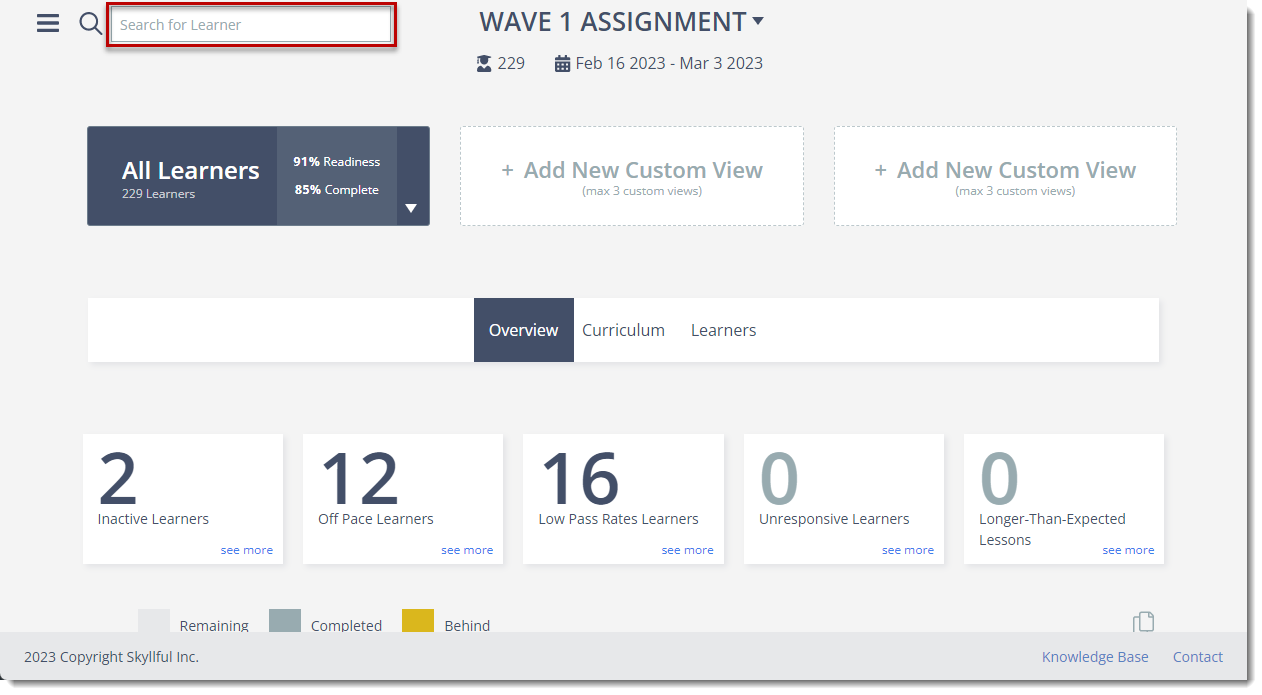
- Learner's First Name
- Learner's Last Name
- Learner's Employee ID
2. From the search results, click on the appropriate learner to open the Learner's profile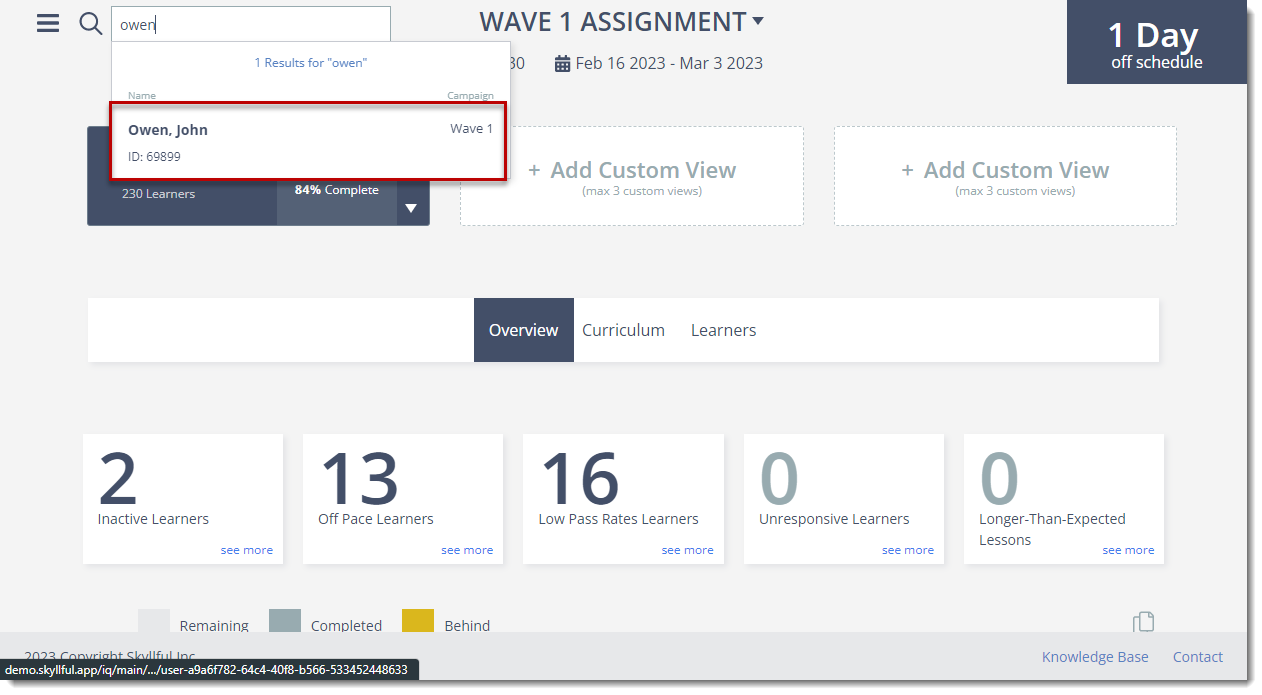
3. Type a temporary password in the [New Password] and [Confirm Password] fields.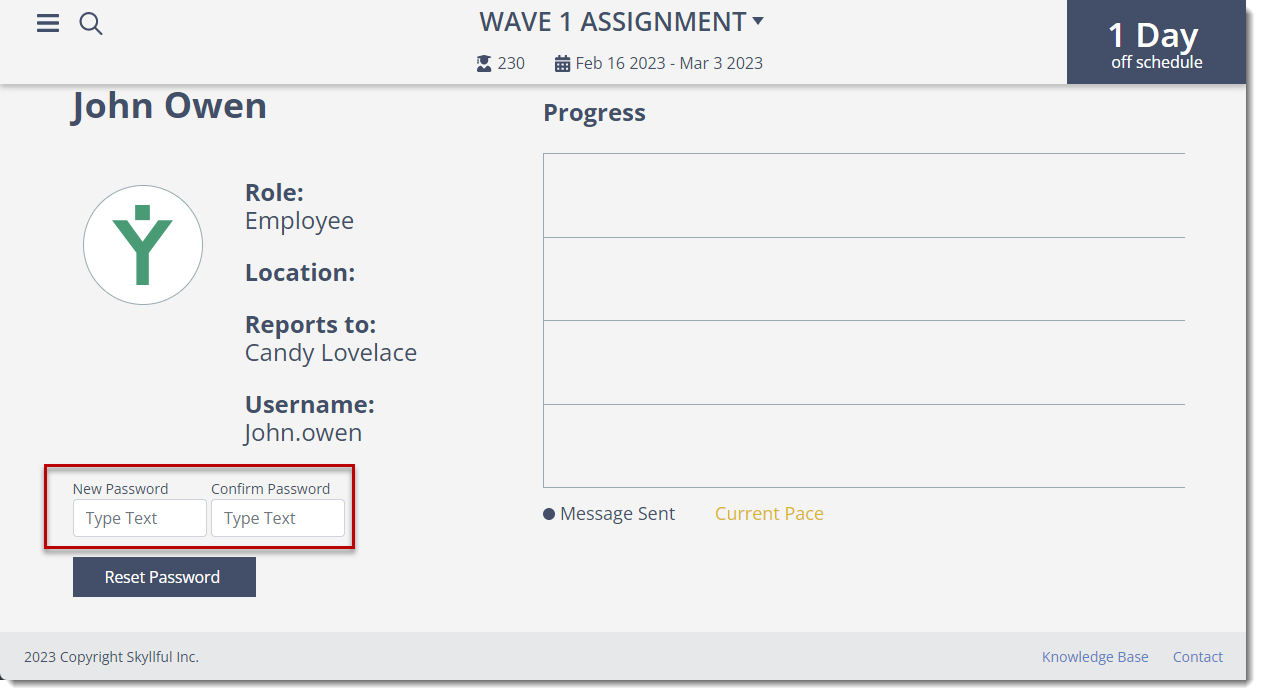
If the [New Password] and [Confirm Password] fields are not shown on the learner's profile this indicates the learner utilizes your organization's Active Directory integration or an Okta integration to sign into Skyllful. In this case, password reset through Skyllful is not an option for the learner.
4. Click [Reset Password] to change the password.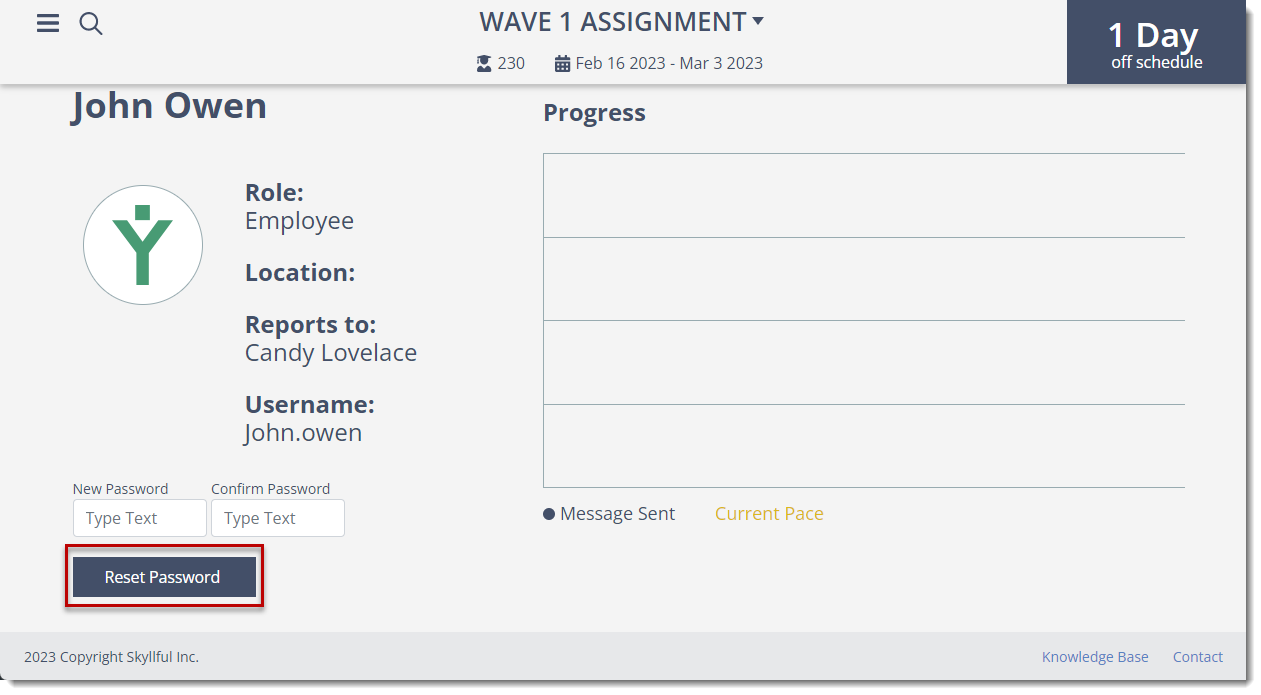
Try it: Learner Password Reset
Click on the link for an interactive walkthrough of resetting a learner's password in Skyllful IQ.